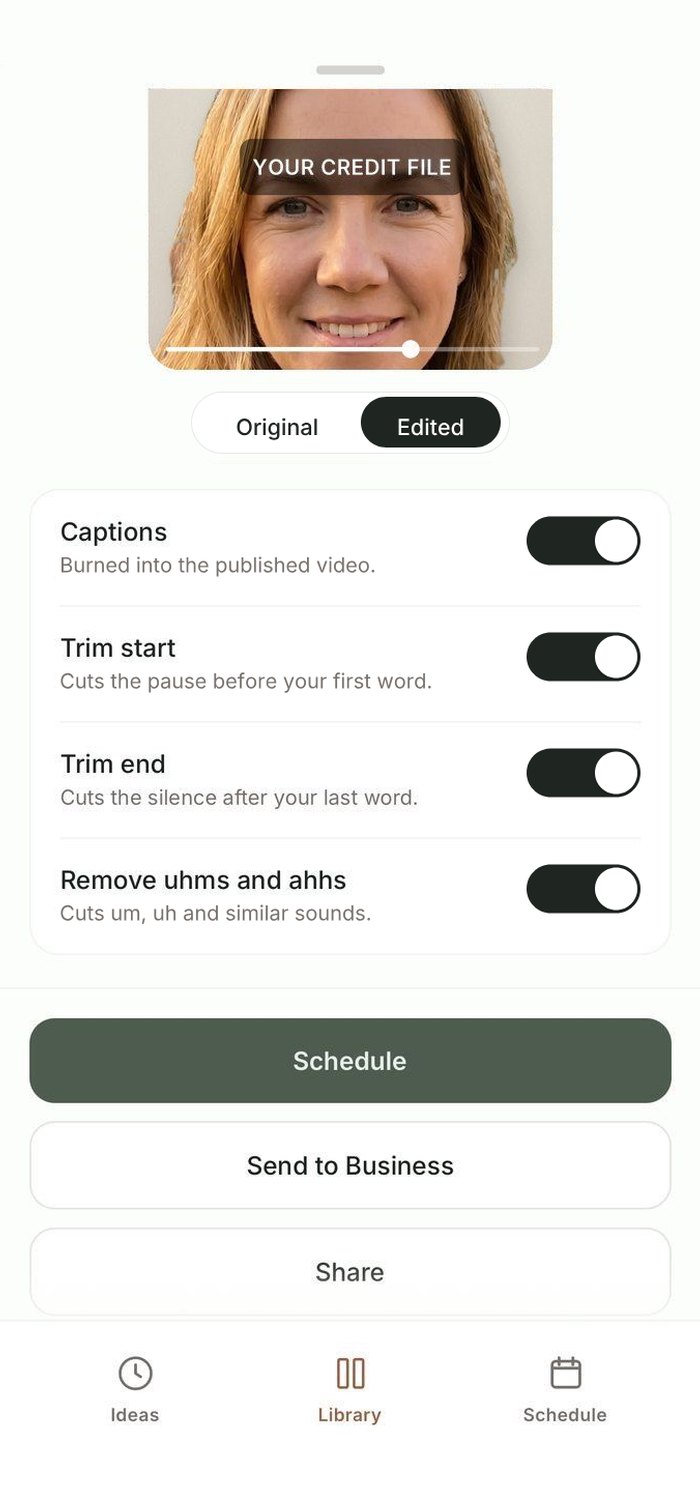
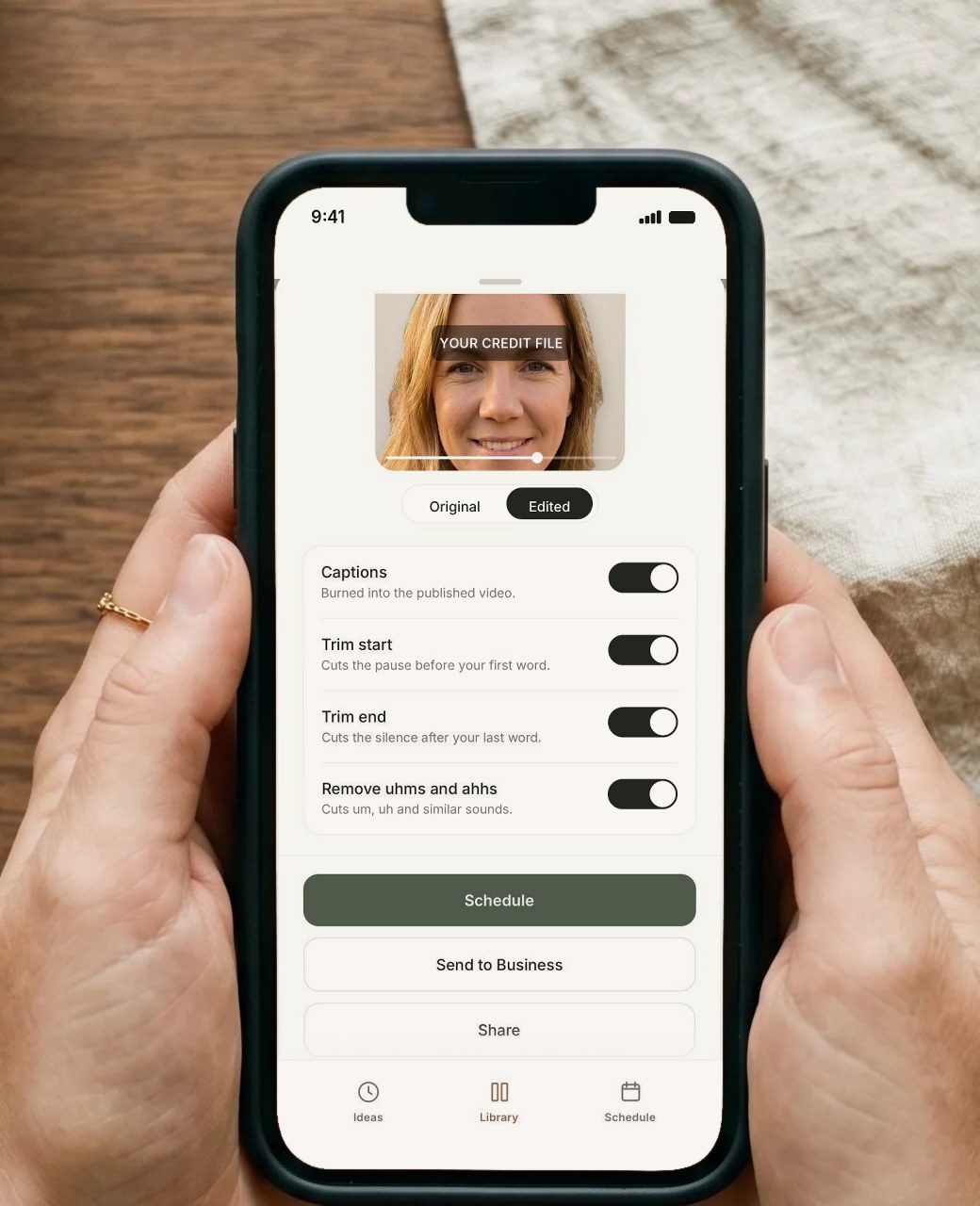
Tention finds the ums, so you don't have to scrub through your own video looking for them. Captions and trims are one tap each, and nothing gets exported to another app to edit, caption or schedule. Flip back to the original to compare.
No card required.

Most ways of making a video mean exporting it from one app and uploading it to the next: an editor, then something for captions, then a scheduler. In Tention the take you filmed is the one you edit and the one you schedule, on your phone or in the web app on your laptop.
The usual way
1
Film it
2
Move it into an editing app
3
Trim the start and end
4
Scrub through for the ums
5
Add captions
6
Export it
7
Upload it to each channel
In Tention
1
Film it
2
Turn on the switches you want
3
Schedule it to your channels
Each video goes out captioned in the same look, starting on your first word and ending when you finish. Put a few weeks of them side by side and your profile looks as considered as the rest of your business.

youroffice
Your office
Mortgage brokers
Home loans in plain English.
Edit profile
Share profile


The RBA held

What lenders check

Fixed or variable

Before you refinance

Your credit file

First home buyers

How offsets work

What's LMI for

Rates this week
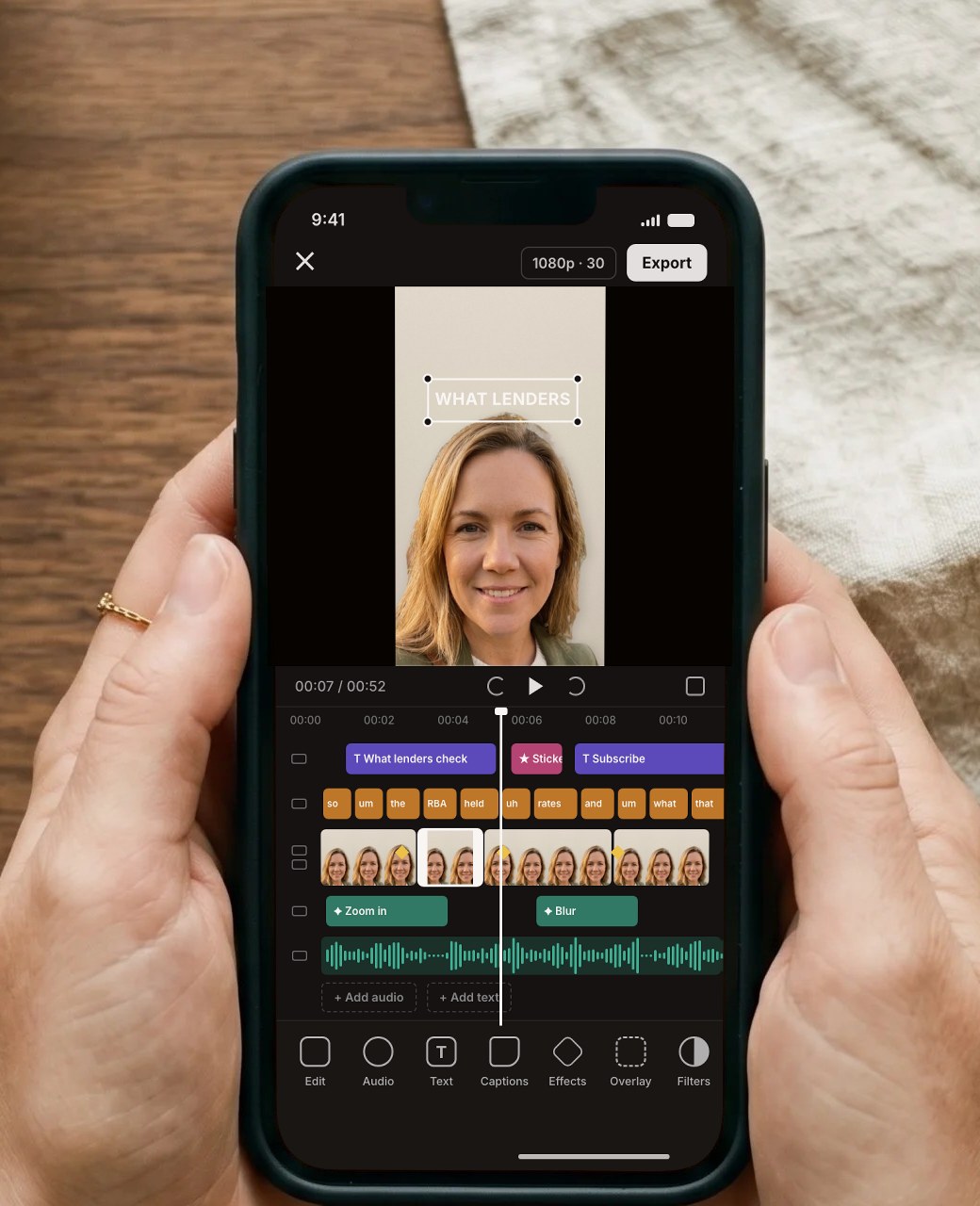
Editing apps come with a vocabulary you have to learn before you post anything. Tention's edit is four switches, and you already know what each one does.
Captions
Trim start
Trim end
Remove ums and ahs
Split · Tracks · Layers · Keyframes · Overlay · Transitions · Blend mode · Speed curve · Masks · Chroma key · Auto captions · Text templates · Stickers · Filters · Adjust · Opacity · Crop · Reverse · Freeze frame · Animations · Beat sync · Voice effects · Noise reduction · Retouch · Background removal · Aspect ratio · Frame rate · Resolution · Proxy · Export settings